10Tec Company
top bar image
Free Newsletter
Your e-mail:


What's New in iGrid.NET

v2.50, build 0000 (the release of v2.5)
April 2nd, 2008
  1. [New] The "tree" functionality of iGrid.NET was enhanced a lot – now you can place the tree in any column of iGrid, you can display the tree lines and adjust them, and the level indent size can be also changed. Using these new features you can create interfaces like on the following picture:

    New tree features

    In this sample the tree is in the Name column (it is 2nd in the grid), the tree lines are visible, they are drawn using dashes, and their color is set to teal. Below is the list of changes related to the tree functionality.

    First, in iGrid.NET 2.5 you can create a tree structure in any column of the grid but not only in the first visible one as it is done in the previous versions, and this "tree" column can be moved into any column position. To specify what column of iGrid will be a tree, use a new TreeCol property of the iGCol data type.

    Note that by default this property is null (Nothing in VB) which means that the old tree mode is in effect, i.e. the tree structure is drawn in the first visible column. Note also that if you place any column on the first visible position, the tree structure in the first visible column is automatically "put" on the new column.

    Second, now iGrid allows you to draw tree lines (optionally), and the look of these lines can be also adjusted. These settings are done through a new TreeLines object property of a new iGTreeLines class data type. The iGTreeLines class has the following public properties:

    • Color of the .NET Color type;
    • DashStyle of the .NET DashStyle type;
    • ShowRootLines - boolean;
    • Visible - boolean.

    The Visible property is used to show/hide the tree lines. The ShowRootLines property specifies whether the tree lines between the items on the first level are drawn (note that tree buttons are not hidden in this case – only the tree lines are hidden). The default values for these properties are True.

    The Color and DashStyle properties control the look of the tree lines, their default values are SystemColors.WindowText and DashStyle.Dot respectively.

    Remember that iGrid.NET can draw the tree lines properly only if you prepare its rows for the tree view by setting their TreeButton properties to a non-default value which implies that there is a place for the tree lines (iGTreeButtonState.Visible or iGTreeButtonState.Hidden).

    And third, the size of the indent of one hierarchy level can be changed with a new integer LevelIndent property of iGrid. Its default value is 19.

    In addition to that, the PrintManager add-on component now has a new TreeLineColor property of the .NET Color type you can use to specify the color of the tree lines on paper. This property works like the existing GridLineColor property used to draw the grid lines on paper. The default value of the property is Color.Empty which means that the color specified in the TreeLines.Color property of the grid is used.

  2. [New] Now iGrid.NET can be localized using the standard .NET approach (when the Localizable property of a Windows Form is set to True). The corresponding Localizable attribute is applied to all the required properties to gain that (these are mainly the properties which contains texts and visual sizes of the iGrid constituent parts).

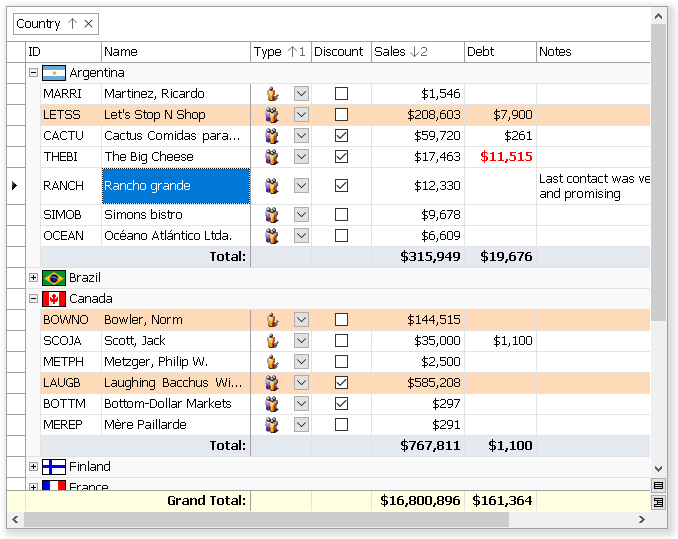
  3. [New] A new boolean property ShowWhenGrouped was added to the column object (the iGCol class). In the previous versions of iGrid, if you group iGrid by a column, this column becomes invisible. Now you can set this option to make some group columns visible in the grid. It is especially important if you use custom grouping like on the following screenshot of an Outlook-styled grid:

    Show column when grouped

    You can see that the values in the group column are still visible while the groups were created for more "large" blocks of data.

  4. [New] A new ColOrderChanged event was implemented. It is raised after the columns have been physically reordered in the grid. Note that it is not the same as the ColHdrEndDrag event which is raised before the columns are reordered (when the user has dropped the column header). The other difference from the ColHdrEndDrag event is that ColOrderChanged is raised even when you change the column order programmatically while ColHdrEndDrag is raised only for interactive column order change operations.

  5. [New] The functionality of the iGrid.NET auto-complete lists was enhanced a lot. The new auto-complete list features are the following.

    In the previous version, when you work with a cell which can be edited as text and it has an auto-complete list, you cannot save the entered characters exactly as they are if there is an item that totally matches the entered text in the opened auto-complete list (even if this item isn't highlighted). It was a problem if the cell input should be case-sensitive. In the current version, you can save the entered text exactly as it is using the SHIFT+ENTER key combination.

    The standard implementation of the drop-down lists in iGrid.NET (the iGDropDownList class) has a new ACLSelFirstWhenFilter boolean property (ACL stands for "auto-complete list"). It determines whether to automatically highlight the first item in the auto-complete list when it works in filter mode. In the previous version of iGrid the first item isn't highlighted in this case, but sometimes it is useful to have it selected to enter it into the cell by the ENTER key without additional keyboard commands.

    The previous version of iGrid.NET allows you to substitute the text entered into a combo box cell with the corresponding item from the attached drop-down list when you hit the ENTER key. It is a very useful feature which allows you to automatically select the required drop-down list item by typing its text even if you do not use auto-complete functionality. In the current version of iGrid this functionality can be turned on/off with a new boolean property called AutoSubstitution implemented in the iGDropDownList class and the IiGDropDownControl interface. The default value of this property is True.

    If auto-substitution is on, you can use other new members of iGDropDownList to control it. By default, iGrid searches for the first drop-down list item which equals the entered text, and the search is case-insensitive. A new boolean property called AutoSubstitutionCustomCompare allows you to use your own comparison logic. By default this property is False, and the standard algorithm is used. But if you set it to True, iGDropDownList raises a new event called GetItemByTextCustomCompare for each list item, and you can tell iGDropDownList whether the item corresponds the entered text by implementing your custom comparison logic in it.

  6. [New] Now iGrid.NET can be styled (can be drawn using your own visual styles) through a new CustomControlPaint object property of a new IiGControlPaint interface. To do that, you need to implement the required drawing in your own object which implements the IiGControlPaint interface, and assign it to the CustomControlPaint property.

    The IiGControlPaint interface contains methods and properties, used to draw some constituent parts of iGrid.NET (such as the group box, the scroll bars, etc), but you can implement only part of them if you wish to style only some parts of iGrid. The SupportedFunctions property in this interface allows iGrid to know what parts should be drawn by your code, the rest parts will be drawn by iGrid using the default drawing algorithms.

    The SupportedFunctions property has a new iGControlPaintFunctions enumeration data type which consists of the following flags: ScrollBar, ScrollBarCustomButton, CheckBox, ComboButton, EllipsisButton, TreeButton, Header, RowHdr, SizeBox, GroupBoxBackground and two special flags None and All. This list allows you to see what parts of iGrid can be styled independently. When you implement custom drawing of these parts, you should return the combination of the corresponding flags in the SupportedFunctions property. Note that you can implement custom drawing for a subset of the available iGrid parts, and use the standard drawing for the other parts.

    You can see a screenshot of a partially styled iGrid.NET below (the contents of iGrid except scroll bars has been styled using a component which provides drawing of interface items using the Outlook 2007 blue style):

    Styled grid
  7. [New] Now you can specify the foreground and background colors of the iGrid.NET drop-down lists using the new ForeColor and BackColor properties of the iGDropDownList class. The default values of these properties are Color.Empty (they are displayed as "NotSet" in the property grid) which means that the corresponding colors will be the same like in the parent iGrid.NET (the ForeColor and BackColor properties of iGrid respectively), i.e. the colors of the drop-down list will be changed automatically to suit the look of the parent grid.

    Two other new color properties of the iGrid drop-down list object, SelItemForeColor and SelItemBackColor, can be used to specify the corresponding colors of the selected list item. Their default values are Color.Empty which means that the corresponding colors of the selected cells, from the parent grid, SelCellsForeColor and SelCellsBackColor, will be used (if row mode is on, the SelRowsForeColor and SelRowsBackColor properties are used instead).

  8. [New] The items of the iGrid.NET drop-down list (the iGDropDownListItem class) can be adjusted individually using the following new properties.

    First, you can colorize each item individually using new ForeColor and BackColor properties of the list item object. By default these properties are Color.Empty which means that the corresponding colors of the drop-down list are used (displayed as "NotSet" in the property grid).

    Second, you can prohibit the selection of individual list items using a new boolean Selectable property. The default value of this property is True.

    The new features described above can be useful in many real-world scenarios – for instance, if you need to create groups of similar items in a drop-down list. In this case you can place group names as list items, but prohibit their selection by setting their Selectable property to False and make them different from other list items by changing their colors.

  9. [New] The look of the iGrid.NET drop-down lists is automatically adjusted to the look of the grid in which they are displayed.

    First, when you style iGrid with the CustomControlPaint object, all drop-down lists displayed in it also use the same styling; this allows you to have consistent look in all controls used in the grid automatically.

    Second, the colors of the text of the list items and the background color of the list are also changed accordingly to the foreground and background colors of the parent grid – in the previous versions only the default settings SystemColors.WindowText and SystemColors.Window were used. However, you can always specify the required colors explicitly using the new ForeColor and BackColor properties of the iGDropDownList class.

    Note that you can use the same drop-down list in several grids. In this case the look of the drop-down list is automatically adjusted to the look of the parent grid in which the list is displayed (if you have not changed the default values of the color properties of the drop-down list).

  10. [New] The standard drawing of level indents can be replaced by custom drawing in a new event called CustomDrawLevelIndentPart. The arguments of this event are:

    readonly int RowIndex
    readonly int PartIndex
    readonly Graphics Graphics
    readonly Rectangle Bounds
    bool DoDefault
    

    Pay attention to the PartIndex parameter. If the hierarchy level of a row (the Level property of the iGRow class) is greater than 1, its level indent rectangle consists of several smaller rectangular parts which correspond to the higher levels. The CustomDrawLevelIndentPart event is raised consequently for these parts from left to right (right to left in right-to-left mode) enumerating them as 0, 1, 2 etc, and the index of the currently drawn level indent part is passed to PartIndex.

    This feature can be used to create groupings like on the picture below. For better understanding, we marked with a red rectangle the level indent in the 5th row. It consists of two parts; the first one (index #0) is filled with a sandy color, the second part (index #1) is filled with a dark orange color:

    Customized group row parts
  11. [New] A new StretchComboButton boolean property was added. You can use this property to control how the combo and ellipsis buttons are drawn – whether they stretch to occupy the entire row height or not.

    When StretchComboButton is False (the default setting):

    StretchComboBtn is False

    When StretchComboButton is True:

    StretchComboBtn is True
  12. [New] A bunch of the following new mouse events which work when the user is editing a cell as text were added: TextBoxMouseClick, TextBoxMouseDoubleClick, TextBoxMouseMove, TextBoxMouseDown, TextBoxMouseUp, TextBoxMouseEnter, TextBoxMouseLeave, TextBoxMouseHover. The first 5 events have the same set of arguments, the standard .NET MouseEventArgs class, and the last 3 have the EventArgs parameter.

  13. [New] A new AdjustTreeButtonLocation event was implemented. By default, iGrid centers vertically the tree buttons in its rows, but if you need your own vertical placement of the tree buttons, you can use this event to correct the default location or calculate your own one (only the Y coordinate can be changed). The arguments of this event allow you to know the Y coordinates of the rectangle in which the tree button can be placed (PlaceRectY and PlaceRectHeight) and the height of the tree button itself (ButtonHeight). You calculate the required Y coordinate in this event and assign it to the ButtonY parameter passed by reference to this event.

    For instance, if you wish to place your tree buttons at the bottom edge of your rows with the 3-pixel gap, use a handler for this event like the following one:

    void iGrid1_AdjustTreeButtonLocation(
      object sender, iGAdjustTreeButtonLocationEventArgs e)
    {
      int myBottomIndent = Math.Min(3, e.PlaceRectHeight - e.ButtonHeight);
      e.ButtonY = e.PlaceRectY + e.PlaceRectHeight - 
        e.ButtonHeight - myBottomIndent;
    }
    

    Note that iGrid does not check whether the new position of the tree button is totally inside the available place rectangle, and you should care about this by yourself.

    When iGrid raises this event, it has already calculated the default location of the tree button, and it passes this value in the ButtonY parameter to your code. So if you wish to slightly correct the default position, you can simply change this value by adding some pixels to it.

  14. [New] This version of iGrid.NET introduces two new features you can use to customize the background of the control.

    First, the iGrid.NET background can be semi- or totally-transparent. To do that, just assign a transparent color to the BackColor property of iGrid, for instance:

    iGrid1.BackColor = Color.FromArgb(128, 255, 0, 0);
    

    The following statement makes the grid background totally transparent:

    iGrid1.BackColor = Color.FromArgb(0, 0, 0, 0);
    

    This causes only the iGrid background to be transparent, but the transparency of other constituent parts (scroll bars, header) can also be adjusted using the corresponding properties.

    Second, if you do not like the standard solid background and you need your own one (say, a gradient fill), you can draw it manually using a new CustomDrawBackground event. To make this event working, you need to set a new boolean property called DrawCustomBackground to True (the default value is False).

  15. [New] A new boolean property called HideDropDownOnDeactivate was implemented. In fact, it is a kind of a service property which can be used if you develop your own drop-down controls used in iGrid. By default, this property is True which means that any drop-down control will be closed if it loses the input focus automatically by iGrid. If you need to open another nested drop-down control from the first one, the first drop-down control should not be closed, and setting this property to False allows you to achieve that.

  16. [New] The event arguments parameter of the CellMouseMove event (the iGCellMouseMoveEventArgs class) was supplemented with the Button property of the MouseButtons type – now it allows you to determine what mouse buttons are pressed.

  17. [New] The iGControl enumeration was supplemented with a new TreeButton member. The CellMouseDown event has the parameter named OverControl of the iGControl type (it allows you to determine whether there is a cell control such as the check box or combo button under the mouse pointer when you click a cell), and now you can determine whether the user clicks the tree button in the cell using this new TreeButton member.

  18. [New] A new property Grid of the iGrid object type was added to the following classes: iGColHdrCollection, iGCellCollection, iGColHdr, iGCell, iGColCollection, iGCol, iGHdrRowCollection, iGHdrRow, iGRowCollection, iGRow, iGSelectedCellsCollection, iGSelectedRowsCollection, iGDefaultAutoGroupRow, iGGridLines, iGGroupBox, iGHeader, iGFrozenArea, iGTreeLines, iGLayout, iGRowHeader, iGScrollBar, iGScrollBarSettings, iGSearchAsType, iGSortObject, iGTextBox, iGUIStrings. It returns the iGrid to which the corresponding object belongs to. It is useful when you have say objects you got from different iGrids, and you need to know the grid each object is contained in.

  19. The internal algorithms used to clear resources occupied by iGrid were enhanced. The iGDropDownList and iGSearchAsType classes now also have the Dispose method (from the standard .NET IDisposable interface) you can use to clear the resources explicitly in your code. We recommend that you call the Dispose method for your unused drop-down lists if you create and destroy them enough frequently to avoid resource deficit in your .NET app and/or OS.

  20. [New, Change] In cell mode the CTRL+HOME/END key combinations select the first available left-top or right-bottom cell respectively. The iGActions enumeration was also supplemented with the GoFirstCell and GoLastCell members which perform the corresponding actions. In the previous version these key combinations select the first or last available cell in the current column, and these actions are still available through the PerformAction method with the parameters iGActions.GoFirstRow and iGActions.GoLastRow respectively.

  21. [New, Change] In the previous versions of iGrid you used the iGStringFormatFlags.WordWrap flag to allow word wrapping when a cell is drawing and editing, and the same flag controlled whether the multiline edit is allowed. Sometimes you need to control these two things independently, and a new iGCellTypeFlags.MultilineEdit flag was introduced for that. If you upgrade from the previous versions of iGrid, this means that if you need multiline edit, you need to specify this flag explicitly in such cell properties as TypeFlags.

  22. [Change] The Text property of the TextBox object property of iGrid returns String.Empty if there is no text in the edit box. The previous versions returned null (Nothing in VB), and if you needed to do some things with the text in the edit box (for instance, calculate its length), in the previous versions you needed first to test whether the Text property is not null (Nothing); now you do not need to do that.

  23. [Change] The arguments of the TextBoxFilterChar event were changed. Now the Char parameter is passed by reference, and this ability allows you to substitute the characters entered by the user (for instance, convert them to upper case) – in the previous version you could only accept or ignore a character using the boolean DoDefault argument.

    The DoDefault argument was removed. Now, if you need to ignore a char, just set the Char parameter to the character with the zero code, for instance:

    e.Char = (char)0;
    
  24. [Change] The StartDragCell event isn't raised when you select several cells using the mouse while the PressedMouseMoveMode property is set to iGPressedMouseMoveMode.Normal.

  25. [Change] For commonality, in all members related to buttons (tree buttons, ellipsis buttons, combo buttons, and scroll bar custom buttons) now we use the word "Button" instead of "Btn" in some places in the previous versions. For instance, the HideComboBtn flag from the iGCellTypeFlags enumeration is called HideComboButton now. If you upgrade your code from the previous version of iGrid.NET, it will be enough to make global case-sensitive text replacement of the following phrases "ComboBtn", "EllipsisBtn", "TreeBtn", "ScrollBarCustBtn" with "ComboButton", "EllipsisButton", "TreeButton", "ScrollBarCustomButton" respectively.

  26. [Change] The signature of the SearchAsTypeCustomCompare event of the iGDropDownList class has been changed. In the previous version of iGrid you should use the integer ItemIndex parameter of this event to access the checked list item - you should retrieve it through the Items collection. Now a reference to the entire item (the iGDropDownListItem class) is passed in a new Item parameter, and you can avoid this step. In fact, this event has a new type

    public delegate void iGDropDownListCustomCompareEventHandler(
      object sender, iGDropDownListCustomCompareEventArgs e)
    

    used also to define the similar GetItemByTextCustomCompare event.

  27. [Fixed] The search window might remain visible when the form contained the grid had been closed.

  28. [Fixed] Some exceptions can be raised at design-time in the VS IDE when you set the UniqueKeys property to True and changed the column set using the column collection editor.

  29. [Fixed] When you set the CurCell property to null (Nothing in VB) to deselect the current cell, iGrid.NET might generate a NullReferenceException exception.

View the changes in the previous minor version (2.0)

View the changes in the earlier versions (1.x)

 
In this section:
Download Demo
  Back to Top
Visit our partners:
Visual Basic News & Information Source Tools and components for software developers ViewSlip - Perfest products for your business! Quality Tools for Serious Microsoft Developers Shareup Networks Downloads vbAccelerator.com Download software from TopShareware.com Shareware and Freeware downloads and tested, rated and reviewed software submitted by software author.
Everything Visual Basic, from Visual Basic 3 to Visual Basic Xml Upload.com: a web service for promoting and selling software online
© 10Tec Company. Last updated: 03 Apr 2008