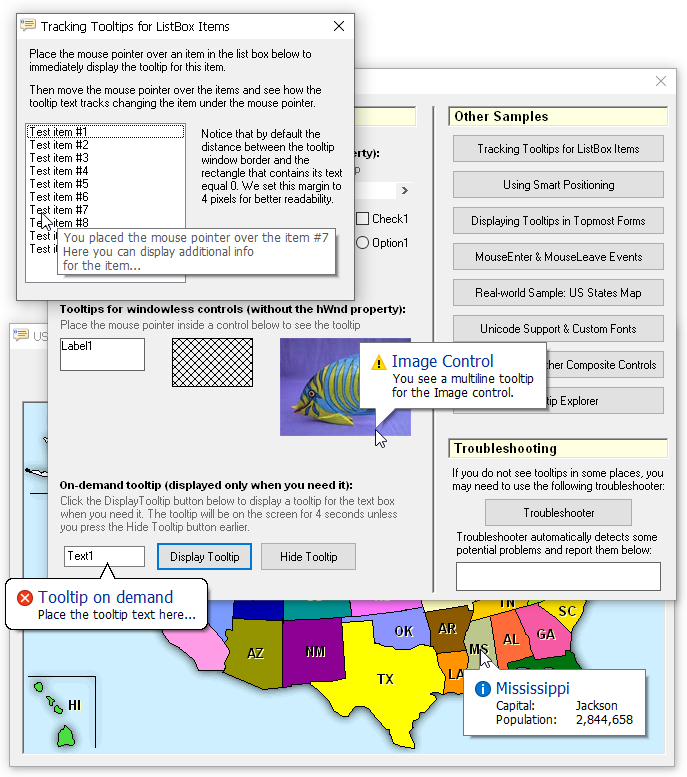
hTooltip Code Samples
Quick start
CTooltip is the core class in the hTooltip library, and it is used to create the tooltip windows for your controls. If you need a tooltip, create the instance of this class, set the properties of the tooltip (such as its text, color, etc.) and attach it to the required control.
For instance, if you need a balloon tooltip for a command button named Command1, the code in your form will looks like the following:
Private objTT As CTooltip
Private Sub Form_Load()
Set objTT = New CTooltip
objTT.Text = "My first balloon tooltip"
objTT.Style = httStyleBalloon
objTT.CreateForVBCtrl Command1
End Sub
The result is on the picture below:
Displaying a tooltip on demand
In some cases you need to display a tooltip from your code at the moment when you need it but not when the user pauses the mouse inside the control and the tooltip window appears after a time pause. For example, you display the message to the user when you check the password when the user hits the Login button:
With hTooltip you can set any tooltip as a display-on-demand tooltip with the DisplayOnDemand property and then show it later with the Show method.
The tooltip in the sample above is created with the following code:
Set objTT = New CTooltip
With objTT
.Title = "Did you forget your password?"
.Text = "Please type your password again." & vbCrLf & _
"Be sure to use the correct uppercase and lowercase letters."
.Icon = httIconError
.Style = httStyleBalloon
.DisplayOnDemand = True
End With
objTT.CreateForVBCtrl txtPasswd
If the entered password is incorrect, the tooltip's window is displayed at the specified point with the Show method:
objTT.Show txtPasswd.Width * 0.2, txtPasswd.Height * 0.7
The MouseEnter and MouseLeave events
Each hTooltip tooltip object raises the MouseEnter and MouseLeave events for the control or rectangular area it is attached to.
If you define a tooltip for a Label control:
Private WithEvents objTT As CTooltip
Private Sub Form_Load()
Set objTT = New CTooltip
objTT.Text = "Tooltip text"
objTT.CreateForVBCtrl Label1
End Sub
the MouseEnter and MouseLeave events will let you know when the mouse pointer entered and left the area occupied by the control say to display the corresponding messages in the status bar:
Private Sub objTT_MouseEnter()
StatusBar1.SimpleText = "The mouse pointer entered the Label"
End Sub
Private Sub objTT_MouseLeave()
StatusBar1.SimpleText = "The mouse pointer left the Label"
End Sub
These events are especially useful and significantly simplify your code if you need such a functionality and your form is cluttered with many controls!
The DefaultTooltip object
In most cases all the tooltips in your app have the same view and functionality, and the DeafultTooltip global object implemented by the hTooltip library can be used to specify the default properties for all the tooltips in your app. You do it in one place and the tooltips created later use these default settings automatically:
With DefaultTooltip
.DelayTime = 50
.VisibleTime = 7000
.BackColor = vbBlue
.ForeColor = vbWhite
.Centered = True
.Style = httStyleBalloon
End With
Set objTT1 = New CTooltip
objTT1.Text = "Command1"
objTT1.CreateForVBCtrl Command1
Set objTT2 = New CTooltip
objTT2.Text = "Command2"
objTT2.CreateForVBCtrl Command2
In the code above the tooltips for the command buttons Command1 and Command2 will have the blue background color, the balloon style, the same time parameters, etc.
Notice that the DefaultTooltip object is accessible in your VB code without preliminary declaration as it is a global object.
|